Spotipy : Client ID and Secret
Step 1: Sign In to Spotify for Developers
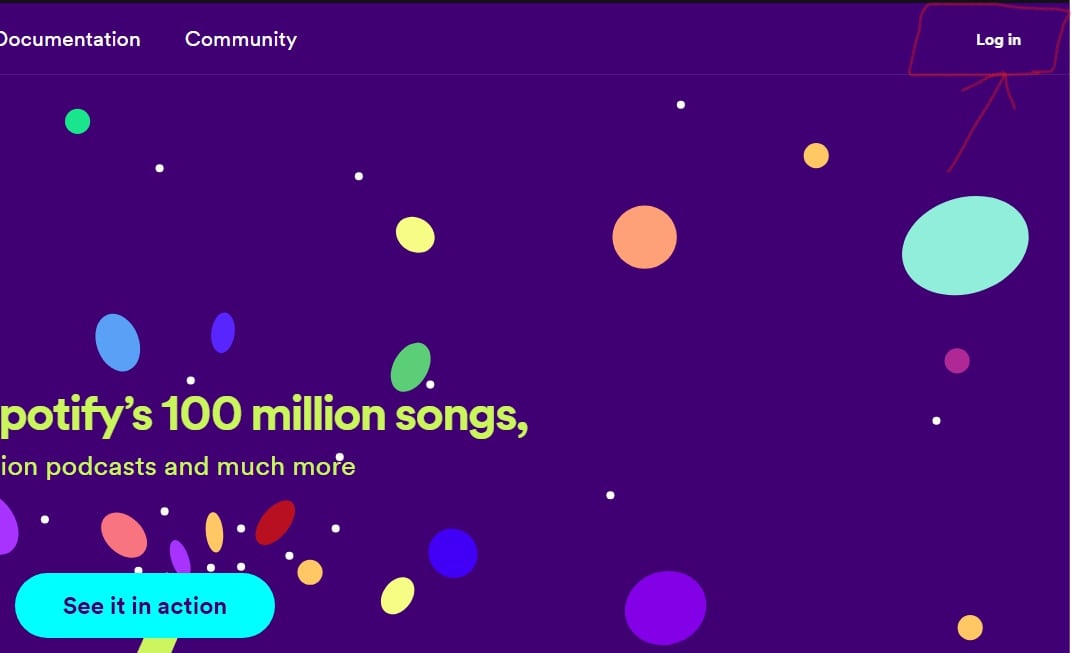
Visit the Spotify for Developers and sign in to your account.
Step 2: Access Your Dashboard
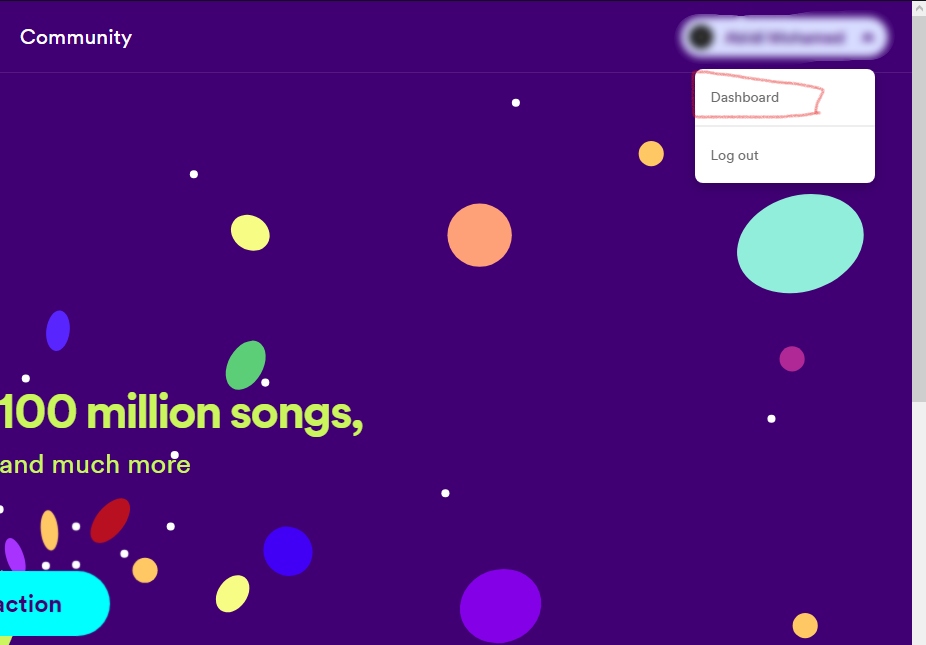
Once logged in, click on your profile name (on the top right corner) and select "Dashboard" from the dropdown menu.
Step 3: Create a New App
In this step, you'll create a new app on the Spotify for Developers platform, which will provide you with the necessary credentials for your project.
Follow these detailed instructions:
- Log in to your Spotify account.
- Visit the Spotify Developer Dashboard.
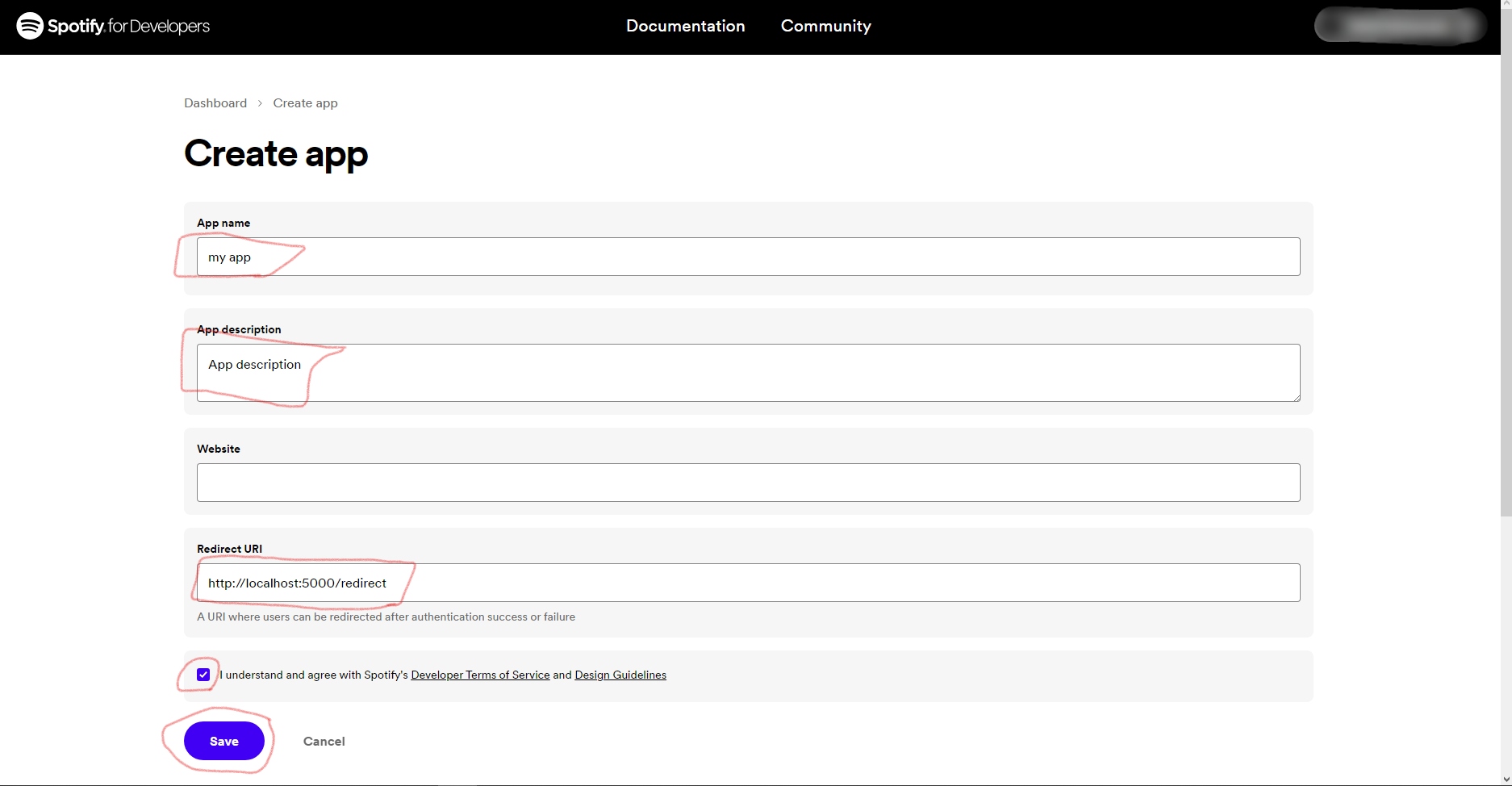
- Click on the "Create an App" button to begin the app creation process.
- Provide a name for your app. This can be the name of your project or anything relevant.
- Add a brief description of your app. This helps you remember its purpose.
- Under the "Redirect URIs" section, add the following exact redirect URI: http://localhost:5000/redirect
- Read and agree to the Spotify Developer Agreement.
- Click the "Save" button to proceed.
This URI is crucial for the authorization process in your app.

Step 4: Get Credentials
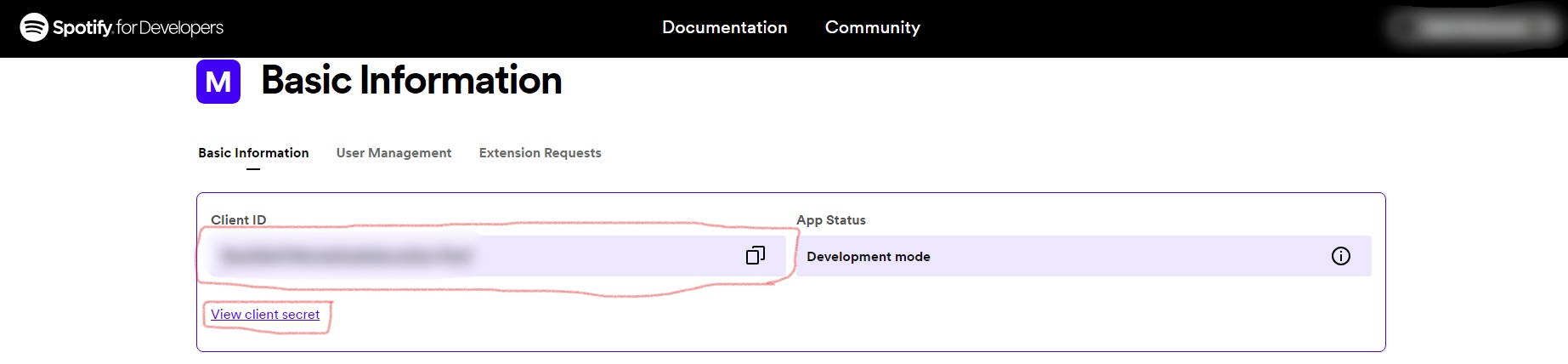
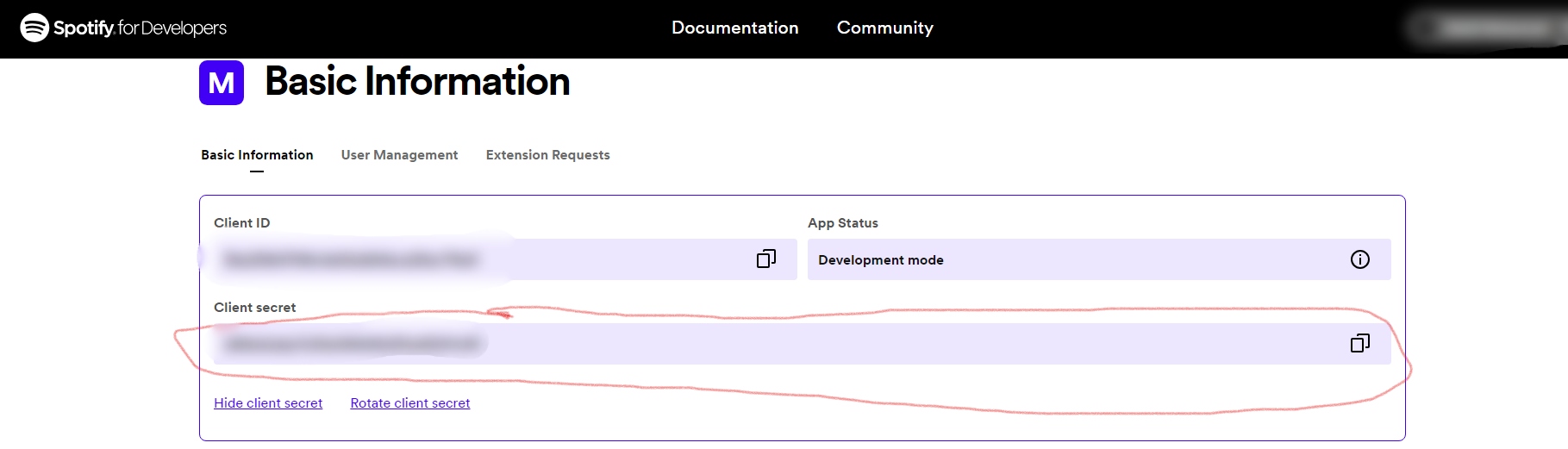
After creating your app, you'll need to retrieve the Client ID and Client Secret, which are essential for integrating Spotify features into your project.
Follow these detailed instructions:
- Once your app is created, you'll be taken to its dashboard. You'll find the app details and configuration options here.
- Click on the "Settings" button.
- Now, you'll see your app's Client ID and Client Secret displayed on the dashboard. These are your app's credentials that grant access to Spotify's features.
- Make sure to keep your Client Secret safe and never share it publicly.
- These credentials are used to authenticate requests from your app to Spotify's services.